
You open a PowerShell window to get one quick thing done, then catch yourself typing Get-ChildItem again for the hundredth time. That's the moment the PowerShell alias command starts looking attractive, because the shell is full of long cmdlet names that you use constantly, and shaving off keystrokes feels like easy productivity. The catch is that aliases are great for your hands and sometimes awful for your scripts, especially once other people have to read, run, or maintain your code.
Table of Contents
- What a PowerShell Alias Actually Does
- Inspecting Existing Aliases with Get-Alias
- Creating and Removing Aliases the Right Way
- When an Alias Is Not Enough, Use a Function
- Persisting Aliases Through Your PowerShell Profile
- Why Production Scripts Should Avoid Aliases
- Quick Reference and Best Practices Checklist
What a PowerShell Alias Actually Does
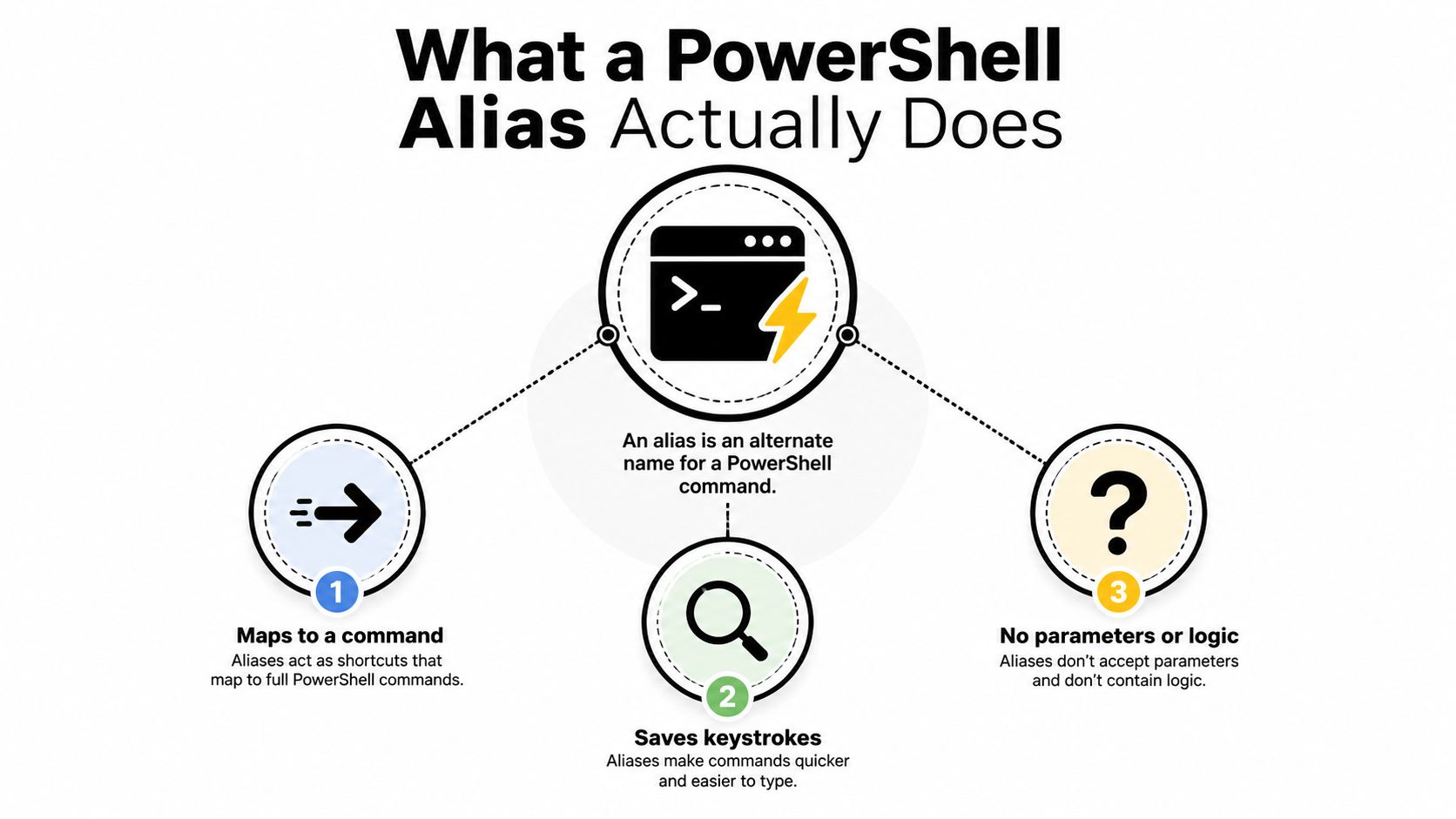
A PowerShell alias is a different name for the same command element. It does not change what the command does, it just gives you a shorter label to type when you already know the underlying cmdlet. Microsoft documents aliases as alternate names for cmdlets or command elements, and Get-Alias shows what exists in the current session, including built-in aliases, imported aliases, and aliases loaded from your profile. Microsoft's alias documentation makes the session-scoped nature clear.
Shortcut, not macro
That distinction matters because people often expect aliases to behave like shell macros. In PowerShell, an alias is only a name, not a little script that can rewrite arguments or insert extra logic. It can point to a cmdlet, function, script, file, or executable, but it doesn't carry its own parameter defaults or fixed arguments.
Practical rule: if you can describe the shortcut as “rename this command,” an alias fits. If you need to describe it as “run this command with these values every time,” an alias is already the wrong tool.
The easiest mental model is this, aliases solve naming, not behavior. That's why they feel perfect for interactive use, where you already know what you mean and just want less typing. It's also why they become frustrating the moment you try to use them like a shorthand template for a repeatable workflow.
Why session scope changes what you see
Aliases live inside the environment that loaded them. Get-Alias shows the active set for the current session, so one machine, one host, or one profile can expose a different alias list from another. That's normal, and it's the reason the same powershell alias command can behave differently across laptops, terminal hosts, and servers.
Once you accept that scope model, alias behavior stops feeling random. You're not looking at a global registry of shortcuts, you're looking at what's currently loaded. That explains why aliases feel instant in your own shell and invisible in a clean session that never imported your profile.
Inspecting Existing Aliases with Get-Alias
Before you create anything, check what already exists. That's the quickest way to avoid collisions, especially in environments where someone else has already used the same short name for a different command. Get-Alias is better treated as an audit tool than a lookup command, because it helps you see the full picture before you add more shorthand.
Start with a broad view
Run Get-Alias with no arguments when you want the full current list. Then narrow it as needed by name pattern or by the command definition behind the alias. A simple check like Get-Alias gal tells you what a shorthand already points to, while a definition-based lookup helps you find every alias that maps to a specific command.
You can also format the output so it's readable in a crowded console. Get-Alias | Format-Table gives you a cleaner snapshot, and Select-Object lets you trim the columns to what matters. That's useful when you're dropped into an unfamiliar host and want to know whether you're working with stock aliases, imported ones, or profile-specific shortcuts.
Check the alias set first, because guessing a short name and overriding an existing mapping is a fast way to create confusion you won't notice until later.
Know the common built-ins
PowerShell ships with a lot of shorthand that users end up memorizing over time. Common ones include gal for Get-Alias, gcm for Get-Command, and gci for Get-ChildItem. The exact point isn't the list itself, it's the habit of verifying what's already defined before you reuse a name in your own shell or profile.
That habit pays off in shared environments. If another admin already expects a particular alias to mean one thing, changing it locally creates support noise that's hard to untangle later. A quick Get-Alias pass prevents that kind of quiet drift before it starts.
Creating and Removing Aliases the Right Way
The creation commands are straightforward, but the behavior is narrower than many expect. New-Alias creates a mapping, Set-Alias creates or changes one, and both affect the current session unless you load them from a profile at startup. Microsoft's guidance is explicit that Set-Alias only changes the name mapping in the active session, and persistent aliases belong in a profile script. Microsoft's alias guidance spells that out plainly.
Create a temporary shortcut first
If you want to test a shortcut without committing to it, start with a session-local alias. That keeps the blast radius small and lets you check whether the name is worth keeping.
A typical interactive example is mapping a short name to a common command, then using it a few times before deciding whether it deserves a place in your profile. That's the right rhythm for aliases, try them in the shell, keep them only if they reduce friction without causing confusion.
Remove what you added, leave the defaults alone
Remove-Alias does what it says, and that includes aliases you created yourself. Built-in aliases can also be removed, but that usually creates more trouble than it solves because you're overriding conventions other users may rely on. If you're cleaning up a scratch session, remove only the shortcuts you introduced and keep the environment predictable.
A few habits make alias management much safer:
- Use short, obvious names: If a teammate can't guess what the alias means, it's probably too clever.
- Prefer testing in the current session: Session-only changes are easy to discard.
- Treat built-ins as shared vocabulary: Replacing them should be rare, deliberate, and documented.
A command name that needs arguments is where the alias model starts to break down. You can name the command, or you can add behavior, but not both with the same tool. That constraint is exactly why the function pattern matters so much.
When an Alias Is Not Enough, Use a Function
Most shortcut advice stops at convenience. PowerShell aliases do not store fixed arguments or parameter defaults, so the moment you want a command to always run with the same settings, you have left alias territory. Microsoft's alias guidance is clear on that point, aliases are alternate names, not mini macros. The limitation is documented in the PowerShell alias documentation, and that is why functions exist in the first place.
Naming versus behavior
The distinction is simple. Aliases rename commands, functions shape commands. If a shortcut must prefill a parameter, wrap the command in a function and, if you still want a shorter keystroke in an interactive shell, alias the function name.
That is the pattern for repeatable behavior. If you want a command that always includes the same default options, put those options in a function body. Then give the function a short alias if you still want fast entry in an interactive shell. The alias stays small, while the function carries the logic that aliases cannot hold.
What fails by design
Trying to cram extra values into Set-Alias is a common mistake because the syntax invites the wrong expectation. It doesn't, and that failure is by design, not a syntax quirk. The alias system only maps one name to another, it does not build a hidden command line behind the scenes.
That limitation is useful in code review. A teammate can open the function and see the behavior directly, instead of trying to infer it from a compact alias that hides the important part. If you are building a small shortcut library for your own workflow, clarity starts to win over brevity.
For teams wiring shortcuts into systems and automations, Donely's integrations follow the same principle, keep the behavior explicit and the wiring repeatable instead of hiding meaning inside a name.
The rule is easy to remember. If the command needs a value every time, a function is the right wrapper. If it only needs a shorter name, an alias is enough.
Persisting Aliases Through Your PowerShell Profile
A temporary shortcut works for one session. A useful shortcut belongs in a profile, so it loads every time PowerShell starts. Persistent aliases need to be loaded from a profile script at startup, and that is the difference between a one-off convenience and a real part of your shell setup. The PowerShell profile-based alias guidance lays out that workflow clearly.
Put the alias where startup can see it
The usual pattern is to inspect $PROFILE, create the file if it does not exist, and add your Set-Alias lines there. On a clean machine, that profile file will not necessarily exist yet, so the first step is finding the path and creating the file at the right location for the host you use. Once the profile runs at startup, the alias is there before you start typing.
That is also the right place for a short comment block that explains why the alias exists. A future you, or a teammate, will appreciate that context when the shortcut is no longer obvious at a glance. If the alias is only for your personal shell, keep it in your user profile rather than scattering it through shared code.
Use the session-based history commands deliberately
PowerShell's command history is session-based, and that matters if you rely on shorthand for history navigation. Invoke-History is the cmdlet Microsoft documents for running commands from session history, and community practice often uses short forms like h and r for history viewing and rerunning. Those shortcuts fit the same pattern as aliases, they are useful in an active shell, and they are a poor fit for code you hand to someone else.
Donely's Hermes API fits that same operating model when you need repeatable automation behavior in a managed environment instead of a one-off shell trick.
A profile is a good home for personal convenience. It is a bad place for anything that has to be self-explanatory to a reviewer.
If you want clean sessions, keep a removable block in your profile that contains only the aliases you use. That gives you a simple way to comment them out, rebuild them, or move them later without digging through unrelated shell customizations.
Why Production Scripts Should Avoid Aliases
Convenience loses to maintainability here. Microsoft's scripting guidance says it's a best practice to avoid aliases in enterprise production-level scripts because they hurt readability and maintainability. Microsoft's scripting guidance on aliases is blunt for a reason, a shared script should be easy to review even by someone who doesn't know your personal shell habits.
Shared code needs the full name
When a script uses the full cmdlet name, the reader sees the intent immediately. That helps during code review, and it helps new team members who are still learning the environment. It also reduces the “why does this work here but not there” problem that shows up when an alias exists on one machine and not on another.
The portability angle matters just as much. A script that runs in one session because an alias was loaded from someone's profile can fail in a fresh session, a build runner, or a server with a different profile state. That's not an edge case, that's a normal deployment failure waiting to happen.
Use speed in the shell, clarity in the repo
Interactive work is different. If you're at a prompt, working alone, and want speed, aliases are a sensible convenience. The problem starts when teams carry that same habit into modules, automation jobs, and production scripts where readability matters more than keystroke savings.
If someone on your team wants to ship gci in a shared module, push back on style, not preference. The full command name costs a few more characters and saves a lot of reader effort later. That tradeoff is easy to defend because it makes the code easier to search, easier to onboard onto, and less brittle across environments.
OpenClaw and Donely's command workflow follows the same production-minded idea, keep operational behavior explicit when the work needs to survive beyond one session.
Quick Reference and Best Practices Checklist
Use aliases when you're working interactively and you already know the underlying command. Use functions when you need parameters, defaults, or any real behavior beyond a rename. Skip both and write the full cmdlet name in scripts, modules, and anything a coworker has to review later.
A fast decision filter
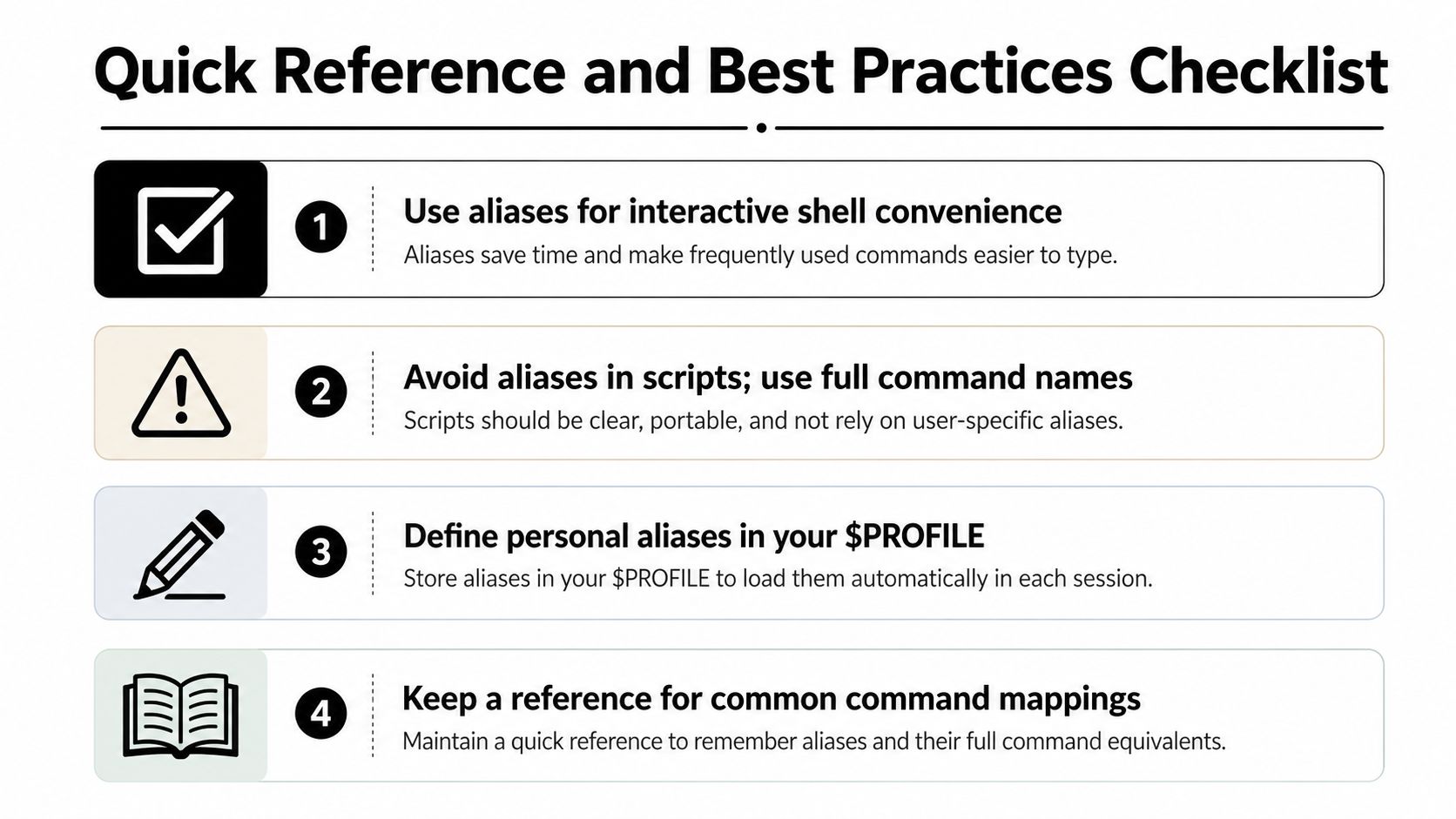
- Use aliases for interactive shell convenience: They save typing when you're the only one who needs to understand the shortcut.
- Avoid aliases in scripts: Full cmdlet names are easier to read, review, and support.
- Define personal aliases in your
$PROFILE: That keeps your shortcuts available every time your shell starts. - Keep a simple mapping reference: If a custom alias matters to your workflow, document it so you don't have to rediscover it later.
A few hygiene rules keep the whole setup from turning into clutter. Don't redefine built-ins casually, keep names short but obvious, and verify a shortcut exists with Get-Alias before you assume the shell is broken. That's the difference between a tidy personal environment and a brittle one.
For me, the powershell alias command is a daily tool, but only in the right lane. It speeds up my interactive work, and it stays out of production code unless I'm deliberately building behavior into a function.
If you want a cleaner way to manage repeatable automation without burying logic in shell shortcuts, visit Donely and see how it handles structured command workflows, isolated instances, and operational control from one dashboard. It's a useful fit when you want repeatability without turning every shortcut into a maintenance problem.