
You're already in the middle of it. The server is reachable, the key is in place, and then SSH stops you with a blunt complaint that the permissions are too open. That message feels annoying when you just want to log in, but it's doing the right thing, because a private key that other users can read, copy, or modify stops being private.
On Unix-like systems, SSH permissions are part of the trust model, not a cleanup detail. On Windows, the same idea exists, but it shows up through ACLs instead of chmod, which is why so many guides help Linux users and leave Windows users stranded. The practical rules are stable across tools and guides, and they're worth learning once so you can stop fighting the same error over and over. Donely security policy
Table of Contents
- Why Your SSH Key Permissions Actually Matter
- The Correct Permissions for Linux macOS and WSL
- Navigating SSH Permissions on Native Windows
- Common Errors and Troubleshooting Steps
- Advanced Security and Automation Practices
- Conclusion Your Checklist for Secure SSH Access
Why Your SSH Key Permissions Actually Matter
The first clue is usually the same: you try to connect, and SSH refuses with a permissions warning instead of authenticating. That isn't SSH being picky for no reason, it's SSH defending the private key against access from other accounts on the same machine. The key point is simple, if another user can read your private key, they can act as you.
The security model behind the error
SSH on Unix-like systems treats the private key as secret material and the public key as shareable material. That's why the standard baseline is owner-only access for the private side, while files like authorized_keys and known_hosts can be readable by others because they don't reveal the secret itself. A consistent pattern across guidance is ~/.ssh at 700, private keys at 600, and public-facing files at 644. One reference on SSH directory permissions shows that pattern clearly.
Practical rule: if SSH says the file is too open, assume the client is protecting you from a real security risk, not just failing a style check.
The mode numbers matter because they encode exactly who can read, write, or enter a directory. 700 means only the owner can read, write, and execute, which is why the .ssh directory needs it. 600 means only the owner can read and write the file, which is why private keys commonly use it. In tighter setups, 400 is also used for private keys when write access isn't needed, giving the owner read-only access. Baeldung's SSH key permissions guide describes that tighter end of the range.
What breaks when permissions are wrong
SSH clients and servers may reject keys that are too permissive even when the file contents are correct. That's the part many people miss, the key can be valid, the passphrase can be right, and the login still fails because the surrounding file or directory is writable by the wrong account. On shared systems, that protection matters because a malicious local user only needs a single mistake in permissions to read or alter the key.
The other common failure mode is the parent directory. A correct private key inside a writable .ssh directory can still be rejected, because SSHD checks both the file and the directory path. In managed environments, the safest habit is to treat permission checks as part of identity, not just filesystem housekeeping.
The Correct Permissions for Linux macOS and WSL
On Linux, macOS, and WSL, SSH permission fixes usually start with the same small set of files, but the reason they matter is often misunderstood. The numbers are not decoration. They define the minimum access SSH will accept without exposing private material to other users or processes. The standard baseline stays the same across this family of systems, ~/.ssh at 700, private keys at 600 or sometimes 400, and public files at 644. The workflow is the one administrators keep returning to because it matches how SSH checks ownership and access, not just whether the file exists.
Quick reference for common SSH files
| File / Directory | Required Permission | Description |
|---|---|---|
~/.ssh |
700 | Owner-only directory, prevents other users from browsing key material |
id_rsa or id_ed25519 |
600 or 400 | Private key, must stay unreadable to group and others |
id_rsa.pub or id_ed25519.pub |
644 | Public key, can be readable because it is not secret |
authorized_keys |
600 or 644, sometimes 444 in centrally managed setups | Lists allowed public keys for the account |
known_hosts |
644 | Stores host fingerprints, not secret, but should still be protected from unwanted edits |
config |
600 | SSH client configuration, often contains sensitive host details |
The practical sequence is short. Set the directory first, then lock down the key file, then check the whole path before you waste time on the connection itself.
- Set the directory first:
chmod 700 ~/.ssh - Lock down the private key:
chmod 600 ~/.ssh/id_ed25519orchmod 600 ~/.ssh/id_rsa - Use read-only private keys when appropriate:
chmod 400 ~/.ssh/id_ed25519 - Leave the public key readable:
chmod 644 ~/.ssh/id_ed25519.pub - Check the whole path: make sure the home directory and any parent path aren't too permissive
SSH checks the full route to the key, not just the file. If a parent directory is writable by someone else, the private key can be replaced or altered before the client reads it. That is why the order matters in practice, harden the directory first, then the key file.
Practical rule: if a key works on one machine and fails on another, compare the path permissions before you compare the key contents.
WSL follows Linux permission behavior closely, which is why it is often the least painful option for Windows developers who want Unix-style SSH handling. If you standardize SSH across laptops, CI runners, and containers, keep the same permission baseline in your runbooks so you are not debugging different rules for the same identity material. A WSL-friendly permission reference is a useful companion if you need a place to centralize that pattern.
Navigating SSH Permissions on Native Windows
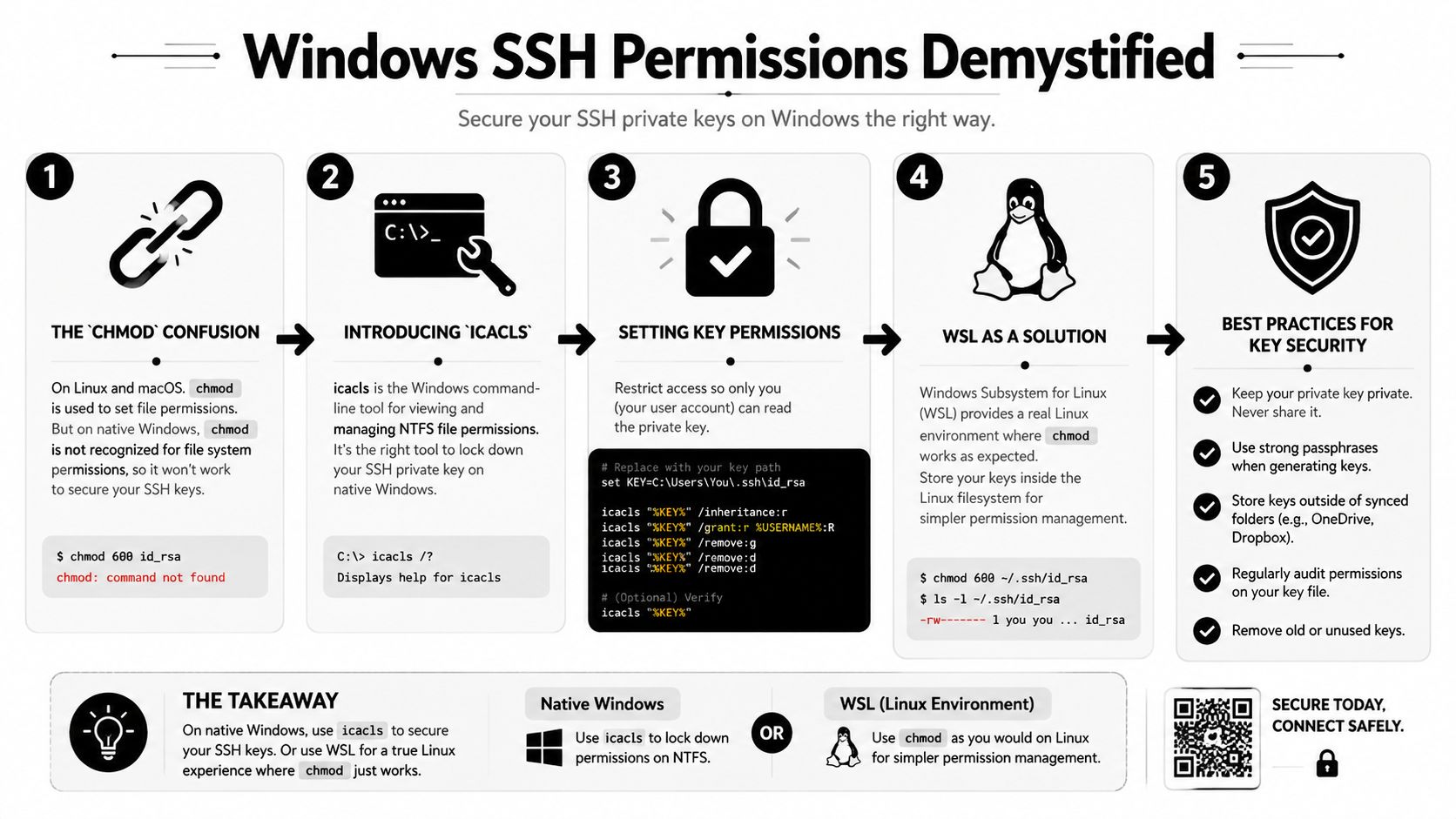
Native Windows is where a lot of otherwise solid SSH advice falls apart. The chmod commands from Linux tutorials don't solve the underlying issue there, because Windows protects files with ownership and ACLs, not POSIX modes. The recurring fix is to remove inherited access, strip out extra principals, and leave only your own account with the rights it needs. A Superuser discussion on Windows SSH permissions reflects that pattern repeatedly.
Fix it in File Explorer first
Open File Explorer, find the private key file, then open Properties and go to the Security tab. The important move is not changing a number, it's trimming the list of identities that can access the file. Disable inheritance, remove users or groups that shouldn't have access, and make sure only your current user account has Full control.
That advice sounds mundane, but it solves the exact mismatch that trips up people coming from Linux. Windows can say a file looks fine visually while still granting inherited rights that make the SSH client reject it. If you're working on a corporate laptop, inherited permissions from the parent folder are often the hidden problem.
Use icacls when you want repeatable changes
The command-line route is better when you need to standardize the fix or document it in a team runbook. icacls lets you inspect and alter ACLs directly, which is the Windows-native equivalent of tightening access on the file. The usual sequence is to disable inheritance, remove other principals, and grant only the current user the required control.
- Inspect the ACLs: use
icaclsto review current access entries - Disable inherited access: remove permissions copied from parent folders
- Remove unrelated principals: delete entries for users and groups that don't need the key
- Grant your account control: keep the file usable only by the account that owns the key
For people who'd rather avoid ACL gymnastics, WSL is a practical escape hatch because it gives you the Linux permission model the SSH tools expect. That doesn't make native Windows broken, it just means the fix lives in a different layer. The command that feels natural on Linux is not the right lever on Windows.
The same principle still applies everywhere, private key material should be readable only by the person who uses it. If your team works across Windows laptops and Linux servers, document both approaches, because a runbook that only says chmod 600 leaves half the fleet without a real fix.
Common Errors and Troubleshooting Steps
A failed SSH login usually tells you where to look if you read it carefully. The message may point to a private key, the .ssh directory, the home folder, or a remote authorized_keys file, and each one has different permission rules. On Unix-like systems, the common baseline is a home directory that is not broadly writable, a .ssh folder locked to the owner, and private keys restricted to the account that uses them.
Read the exact error before changing anything
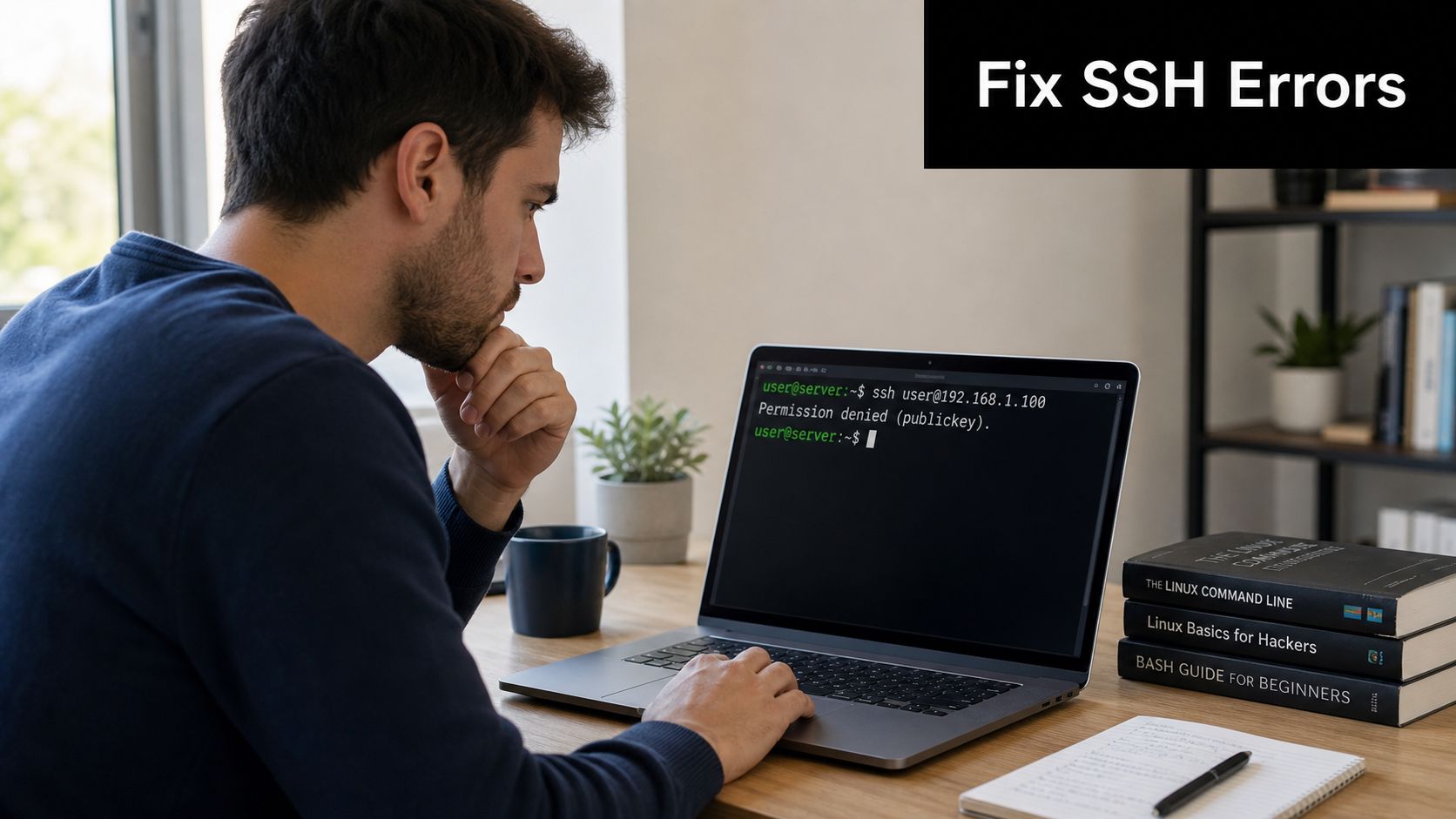
If SSH says Permissions 0644 for '/home/user/.ssh/id_rsa' are too open, the private key is readable by group or others. The fix is straightforward, chmod 600 ~/.ssh/id_rsa, or chmod 400 ~/.ssh/id_rsa if you do not need write access. If the message says Bad owner or permissions on ~/.ssh/config, lock down the config file so the owning user controls it.
A writable parent directory can trigger the same kind of failure even when the key file itself looks correct. SSHD checks directory writeability too, so chmod 700 ~/.ssh is often the first check that matters. If you are hardening a local development host or a containerized build environment, the same rule applies, because the client still expects the key path to be private. For a broader host-level setup, the hosting guidance should be kept in mind alongside the key file itself.
Practical rule: fix the path from top to bottom, not just the last file in the chain.
Separate permission issues from authorization issues
A Permission denied response does not always point to file modes. If the private key permissions are fine, the next likely causes are the wrong key, a missing entry in authorized_keys, or a mismatch in ownership on the remote side. Managed hosts are especially sensitive here, because SSHD checks both the file and the directory around it.
The fastest way to sort it out is to verify three things in order. First, the local private key exists and is locked down. Second, the public key is present in the remote account's authorized_keys. Third, the remote .ssh directory is not writable by anyone who should not touch it. That sequence catches most of the failures people blame on SSH itself.
Watch for copy and mount mistakes
Problems often show up after copying dotfiles between systems or moving a home directory onto unusual storage. A permission set that works in one place can fail if the file lands on a mount with different ownership behavior or inherited access rules. That happens when someone copies keys from a laptop to a server, restores a backup without resetting modes, or moves secrets into a workspace where container tooling changes how ownership is applied.
If the file modes look correct but SSH still rejects the key, stop changing the key file itself. Recheck ownership, directory writeability, and the exact path used by the client. The quickest fix is often to return to a known-good baseline and reapply the right permissions in order.
Advanced Security and Automation Practices
A key that is correct on one machine can still fail in a pipeline, a container, or a mixed Windows and Linux fleet. That is why the next step is enforcement, not memory. In CI/CD, SSH keys usually arrive as secrets, and the main risk is not just exposure on disk. It is leaving them in a workspace with the wrong ownership, inherited access, or a path that keeps the key around after the job finishes.
A practical pipeline treats the key as runtime-only material. It writes the file with the narrowest permissions that still let the job work, uses it for the task at hand, then removes it as soon as the job ends. That approach matters because build agents are often reused, mounted volumes can carry over access rules, and a temporary file that survives past the job is still a private key in the wrong place.

Tighten authorized_keys as part of server hygiene
The remote side matters just as much as the local key. authorized_keys controls who can log in, so if the file is writable by the wrong account, access control becomes fragile fast. SANS guidance recommends stronger control in centrally managed setups, including making the file owned by root and read-only at 0444, or using 600/644 in user-managed setups.
That same guidance points to a common operational mistake. The parent .ssh directory must not be writable by other users. If the directory is too open, SSHD can reject authentication even when the file itself looks correct. File mode and directory writeability have to be enforced together, because SSH checks both.
Build the rule into automation, not memory
Provisioning tools should set permissions the same way every time. Ansible, shell bootstrap scripts, and image build steps can all enforce the expected modes so humans do not need to remember them during an incident. That matters most in environments that mix user-managed hosts with centrally managed servers, since the ownership model is not always the same.
Containerized workloads need the same discipline. If you mount a secret into a container, set the right access before the SSH client uses it, and avoid broad bind mounts that pull in unnecessary permissions from the host. In Kubernetes, the safer pattern is to keep the key scoped to the smallest possible runtime surface, then let the workload exit without persisting it.
Use the agent when the key does not need to stay on disk
ssh-agent reduces how long a private key sits in a file. It does not replace permissions, but it lowers exposure by keeping the key in memory for the session instead of scattering it across scripts and images. For teams shipping code through CI/CD, that trade-off is often cleaner than leaving a long-lived private key in a workspace.
The main rule is simple. Automate the secure default and make exceptions deliberate. If a deployment path still needs manual key handling, give it a documented permission baseline and a cleanup step. That keeps the permission model consistent even when the delivery method changes.
Conclusion Your Checklist for Secure SSH Access
SSH key file permissions are one of those controls that stays invisible until it stops access or leaves a private key exposed to the wrong user. The working baseline is straightforward, .ssh at 700, private keys at 600 or 400, public files at 644. On Unix-like systems, that model is simple enough to enforce with chmod, but the same outcome on Windows depends on ownership and ACLs, which is why so many teams get tripped up when they move between platforms.
Keep this checklist handy
- Linux, macOS, WSL: use
chmodto lock down.ssh, the private key, and any sensitive config files - Windows: change ownership and ACLs, disable inheritance, and leave only your user with the access it needs
- Remote hosts: verify
authorized_keysand the parent.sshdirectory together, not one in isolation - Automation: enforce the permission baseline in provisioning, CI/CD, and image builds
- Incident response: start with the path permissions before rewriting the key or reinstalling tools
The safest habit is to check permissions the same way every time you create, copy, rotate, or deploy a key. That keeps SSH failures easier to diagnose and reduces the pressure to weaken security just to get a login working. If your environment spans Linux laptops, Windows desktops, and automated deploys, this belongs in your standard operating procedure, not in a one-off troubleshooting note.